
Email Organization Hacks to Keep Your Inbox Tidy
Table Of Contents
- What Are Email Organization Hacks?
- Why Inbox Clutter Happens
- Smart Email Sorting Methods
- Proven Inbox Management Strategies
- Automation for Better Control
- Long-Term Inbox Maintenance
- Keep Your Inbox Organized - Monthly Maintenance Checklist
- Key Takeaways
- Email Organization Hacks in Practice
- Email Organization Methods Compared
- Common Email Organization Mistakes
- FAQs
- The Three-Element System Behind Every Tidy Inbox
Your email inbox is more than just a place to send and receive messages. For most professionals, it has quietly become the most disorganized system in their working life - and one of the most expensive.
What Are Email Organization Hacks?
Email organization hacks are practical techniques - including folder architecture, automated filters, inbox zero routines, and smart labeling systems - that reduce inbox clutter, speed up email processing, and eliminate the cognitive load of an unmanaged inbox. Applied consistently, they transform email from a source of daily stress into a controlled, efficient workflow tool that supports productivity rather than competing with it.
The average professional receives 121 emails per day, according to research published by the Radicati Group. Of those, a significant portion require no action - newsletters they vaguely remember subscribing to, CC chains they were added to as a formality, automated notifications from tools they use but didn't configure properly. Applying a set of deliberate email organization hacks is the only reliable way to take back control. The problem isn't volume alone - it's the mental overhead of sorting signal from noise, every single day, without a system designed to do it automatically.
McKinsey Global Institute estimates that employees in knowledge-based roles use approximately 28% of their weekly work time to review and respond to emails. For a full-time professional, that's roughly 13 hours per week - over 650 hours per year - absorbed by one communication channel. And yet most people's inbox organization consists of vague categories they created years ago and a search bar they rely on when things get desperate.
This article is a practical intervention. Not a philosophical argument for email minimalism, but a concrete system of email organization hacks: folder architecture, filter logic, automation setup, and the daily habits that prevent the problem from returning after you've solved it once.
|
121 Emails land in the inbox of an average professional every day. Radicati Group |
28% Of the workweek spent on email McKinsey Global Institute |
23 Min to regain focus after an email interruption Gloria Mark, UC Irvine |
62% A significant number of employees feel overloaded by the sheer volume of emails they receive. Adobe Email Usage Report |
Why Inbox Clutter Happens
|
Common Causes of Email Overload 333.2B emails sent and received globally every day in 2022 Sources - https://www.statista.com/statistics/456500/daily-number-of-e-mails-worldwide/ |
Inbox overload rarely happens overnight. It accumulates through a series of small, reasonable-seeming decisions: subscribing to a newsletter that seemed useful in the moment, agreeing to be CC'd on a project thread, enabling notifications from every platform your team uses. Each individual email is defensible. The collective weight of them is not.
The most common causes, in rough order of volume impact:
-
Newsletter and promotional subscriptions – As per an email usage report by Adobe, an average person is subscribed to nearly 37 marketing or newsletter email lists, with most of these emails being opened less than twice in a year.
-
Internal CC culture - Research from Microsoft's Work Trend Index identified excessive CC and reply-all behavior as one of the top drivers of inbox volume among knowledge workers, particularly in organizations without clear communication protocols.
-
App and platform notifications from project management tools, CRM systems, analytics dashboards, and collaboration apps are often enabled by default, leading to frequent email alerts. In most cases, it’s simpler to reroute these alerts than to disable them completely.
-
Promotional and transactional email - Order confirmations, shipping updates, billing notices, and promotional blasts from services you actively use are legitimate but rarely prioritized alongside work communications.
-
Handling multiple email accounts - especially when personal and professional inboxes are kept separate without a unified system - often leads to repeated effort, workflow inefficiencies, and a higher risk of overlooking truly important messages.
Impact on Daily Productivity
The true cost of a messy inbox goes far beyond just wasted time. Research by Professor Gloria Mark at the University of California, Irvine - frequently referenced by the Harvard Business Review - shows that, on average, it takes about 23 minutes and 15 seconds to completely restore deep concentration after a single email interruption. If you're opening your inbox reactively throughout the day, the actual work cost isn't the time spent reading the email. It's the recovery time after each interruption - a cost no email organization hack can fix if the checking habit remains continuous.
The problem gets worse because every email creates another decision. Each unread email represents an unfinished decision - you have to choose whether to reply immediately, respond later, or ignore it completely. Does this require action? Is it urgent? An inbox with 4,000 unread messages isn't just a visual mess - it's a stack of 4,000 open loops running in the background of your working memory, consuming cognitive resources whether you're actively looking at them or not.
Asana's Work Index (Asana Inc., 2023) identified context switching as the leading driver of workplace inefficiency, with 58% of workers reporting that jumping between different communication channels - including email - was the primary cause of their productivity loss. An unorganized inbox forces constant context switching because there's no reliable system to trust. Each time you open the inbox, it turns into sorting through priorities instead of concentrating on a single task.
|
An email inbox functions like a to-do list that anyone else can keep adding tasks to. What begins as a crowded inbox can quickly become a system where other people's agendas shape your day more than your own priorities. - Merlin Mann, creator of Inbox Zero and author on productivity systems |
Smart Email Sorting Methods
Create Practical Folder Systems
The most common folder system mistake is creating too many categories. When there are 40 folders, the act of deciding where an email belongs takes longer than the email itself warrants. The goal is a system with enough structure to be useful and enough simplicity to be automatic.
Consultants prefer simple three-level folder system:
Three-Tier Folder Architecture
1. Design your email structure around a small collection of high-level areas, such as Customer Engagement, Project Tracking, Billing Administration, Operational Workflows, Reading Lists, and Information Repositories. With broader categories, sorting messages becomes faster and more intuitive.
2. Keep client data neatly arranged by placing each client's documents in its own folder within the main Clients folder. Inside Projects, individual project folders. Keep second-level folders active - archive or collapse completed ones quarterly.
3. Status subfolders (optional, for high-volume categories): Active, Waiting, Completed. Only add this tier if you have enough volume within a single second-level folder to justify it.
A single essential folder every professional inbox should have is called “Waiting.” Emails where you're awaiting a response or decision from someone else should be moved here, not left in the main inbox as a passive reminder. Review this folder weekly. It's one of the most reliable ways to prevent follow-up tasks from getting lost.
Use Labels for Organization
Labels (Gmail) and Categories (Outlook) serve a different organizational function from folders - they allow an email to belong to multiple classifications simultaneously. A client proposal email, for example, might be tagged with a client name, a project name, and a "Needs Review" action label - without having to choose just one filing location.
|
Label Type |
Gmail |
Outlook |
Best Use Case |
|
Action Labels |
Reply Needed, Follow Up, Waiting |
Flag + Categories |
Processing workflow management |
|
Priority Labels |
⭐ VIP, Urgent |
High Importance flag |
Surfacing time-sensitive email quickly |
|
Project Labels |
Project: Rebrand, Client: Acme |
Color categories |
Multi-email thread organization |
|
Content Labels |
Newsletter, Receipt, Legal |
Category colors |
Passive filtering and archiving |
|
Status Labels |
Read Later, In Progress, Done |
Custom categories |
Long-running email task tracking |
Using color-coded labels in Gmail is often an overlooked yet powerful way to boost productivity. Assigning distinct colors to client names, project labels, and action states means the inbox becomes visually scannable in under three seconds - you can see what requires action, what it differs based on the client and what must be done prior to reading any subject line.
Proven Inbox Management Strategies
Apply Consistent Cleanup Routines
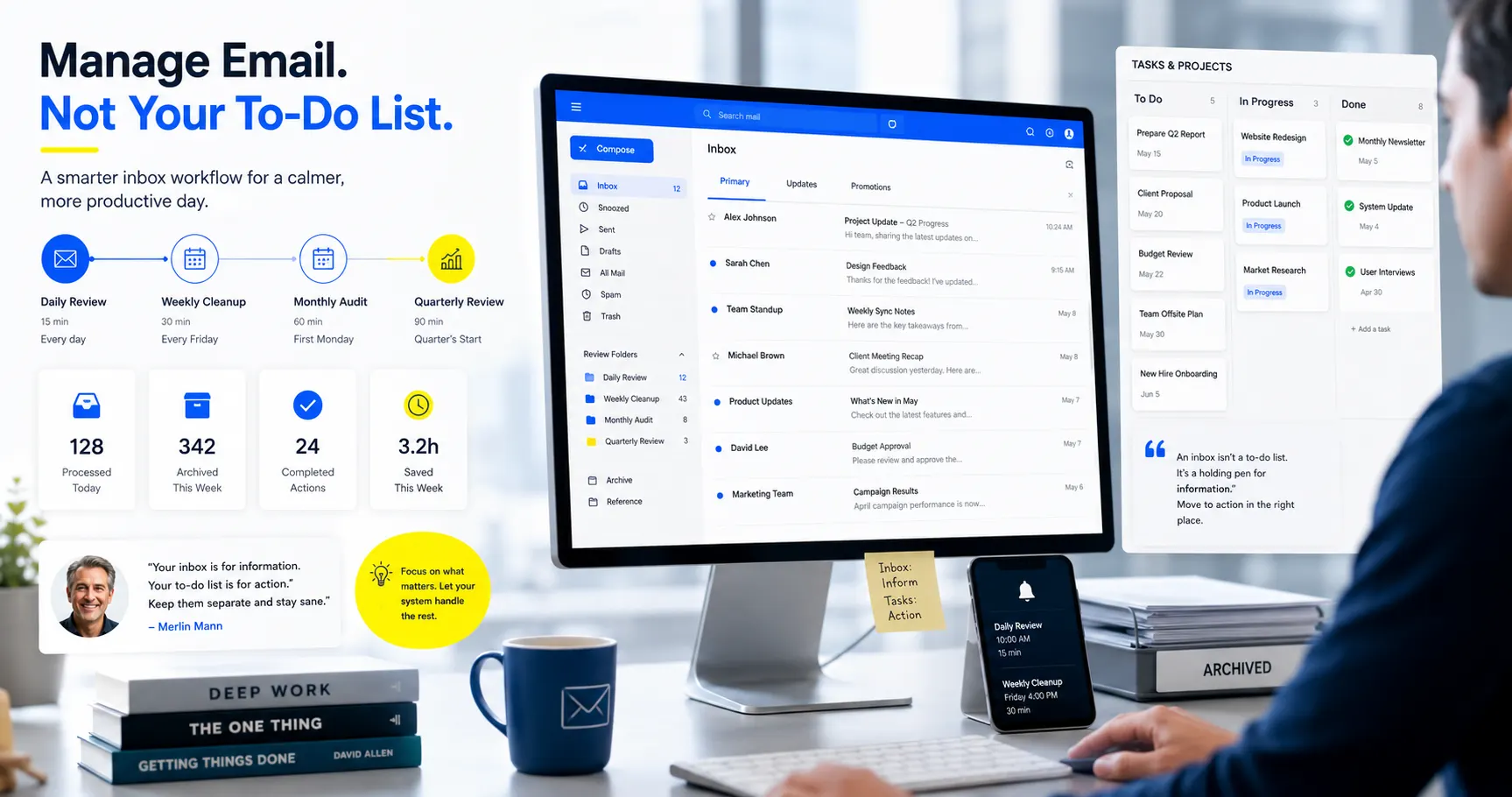
The single most consistent finding across inbox productivity research is that systems without scheduled maintenance degrade rapidly. Inbox Zero isn’t a final goal to reach - it’s an ongoing system of regular upkeep. And like most maintenance, the interval matters more than the intensity.
The daily-weekly-monthly framework recommended by productivity researchers:
-
In two daily 15-minute sessions, go through your inbox using the four-decision approach: respond immediately if it’s a short task under 2 minutes, delete what’s not required, archive finished emails, or shift important ones to a later-action folder. Close the inbox between sessions.
-
Weekly (30 minutes, Friday afternoon): Clear the "Action Required" folder, review the Waiting folder for pending follow-ups, archive completed project threads, and unsubscribe from any newsletter you didn't read this week.
-
Monthly (45–60 minutes): Full inbox audit - delete empty or redundant folders, compress completed project archives, review filter rules for accuracy, and assess storage usage.
-
Quarterly: Systematic unsubscribe pass, review of email notification settings across all connected tools, security audit of third-party app access to your email account.
|
Inbox Zero - The Original Framework Merlin Mann's Inbox Zero methodology, developed and popularized in a 2007 Google Tech Talk, defines five possible actions for every email: Delete, Delegate, Respond, Defer, or Do. The discipline isn't in achieving zero - it's in having a consistent decision-making process that removes ambiguity. When every email has a clear next action, the inbox stops being an anxiety source and becomes a managed task queue. |
Reduce Unnecessary Email Volume
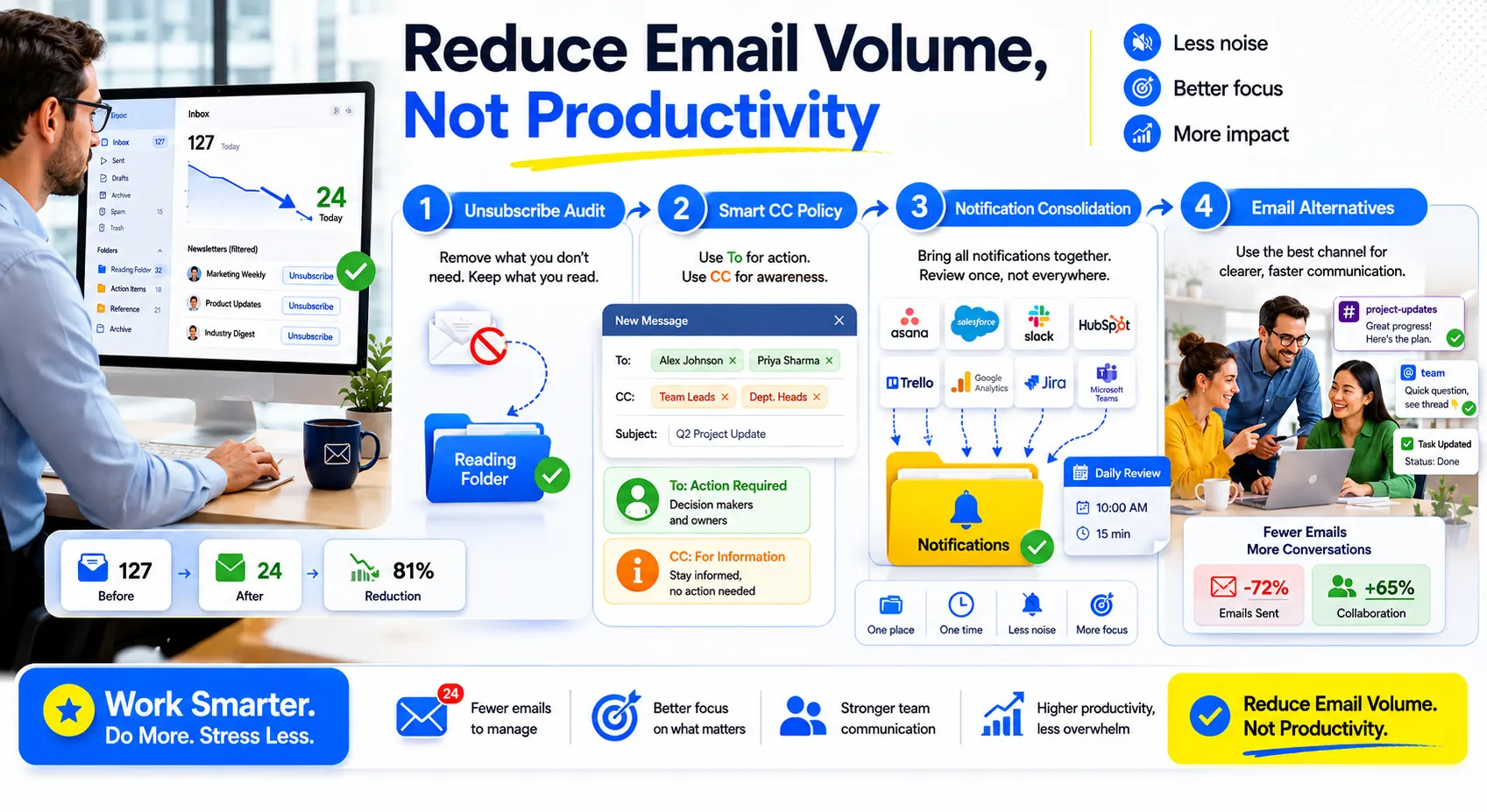
Organizing incoming work is only half of the answer. Reducing what arrives in the first place is faster, more durable, and requires less ongoing effort. According to McKinsey, organizations that shifted internal communication to tools like Slack or Microsoft Teams significantly cut down email overload. Many reported as much as a 30% decrease in internal emails without affecting team collaboration or knowledge sharing.
The most impactful volume-reduction strategies:
-
One-week unsubscribe audit: Use Clean Email or Unroll.Me to audit all newsletter and promotional subscriptions. Unsubscribe from anything unopened in 30 days. Redirect essential newsletters to a dedicated "Reading" folder via filter.
-
CC policy: Establish a team norm that CC is for information only - no response expected. Create an explicit guideline: if action is required, the recipient must be in the To field.
-
Notification consolidation: Redirect all platform notifications (Jira, Asana, Salesforce, Google Analytics) to a single "Notifications" folder via filter. Batch-review this folder once daily rather than processing notifications in real time.
-
Email alternatives for internal comms: For teams still using email for quick internal questions - shift these to a shared channel. One-question internal emails are the highest-volume, lowest-value category in most professional inboxes.
| Achieving inbox zero begins long before you open your first email. The most effective strategy is to limit incoming volume rather than increase processing speed. A crowded inbox usually points to flaws in how work is organized, not shortcomings in an individual's ability to manage time. |
Automation for Better Control
Set Filters for Efficiency
Email filters are the highest-leverage, lowest-effort organization tool available - and the most consistently underused. A filter is a rule that executes automatically on every incoming email, removing the need for manual decision-making on recurring email types. Once set up, a good filter library runs silently and permanently.
How to set up a high-impact Gmail filter in four steps:
Gmail Filter Setup - Step by Step
-
Identify a category of emails that appears regularly and requires no inbox processing: newsletters, order confirmations, automated platform alerts, team calendar invites.
-
Open Settings → Filters and Blocked Addresses → Create New Filter. Define the criteria: From address, subject line contains, or the word "unsubscribe" in body (catches most newsletters).
-
Set your preferred action: Skip the inbox, add a label, or flag the email as read. For newsletters: Skip inbox + Apply label "Reading" + Mark as read. Batch-review this label daily or weekly.
-
Extend the rule to past messages. Run the filter. Your inbox immediately reflects the new rule.Identify a category of emails that appears regularly and requires no inbox processing -
In Outlook, the equivalent is Rules (Home → Rules → Manage Rules). The logic is identical: define criteria, define action, apply to existing messages if desired. Outlook's Focused Inbox additionally uses machine learning to pre-sort emails into Focused (priority) and Other tabs - a useful baseline that works even before custom rules are configured.
|
VIP Sender Filter - High-Impact Setup Create a whitelist filter for your highest-priority senders: key clients, your manager, specific colleagues whose emails always require attention. In Gmail: Filter → From → [email addresses, comma-separated] → Never send to spam + Apply label "VIP" + Star it. These emails surface immediately regardless of inbox volume surrounding them. |
Streamline Recurring Email Tasks
A significant portion of email time goes not to reading, but to composing -
specifically, recomposing the same types of responses multiple times per week. Templates, canned responses, and email automation eliminate this overhead category entirely.
|
Recurring Task |
Tool |
Time Saved / Week |
Difficulty |
|
Standard client responses |
Gmail Templates / Outlook Quick Parts |
45–60 min |
Low |
|
Meeting scheduling |
Calendly / Reclaim.ai integrated |
30–40 min |
Low |
|
Out-of-office and delay responses |
Auto-reply rules |
10–15 min |
Very Low |
|
Follow-up sequencing (sales/BD) |
HubSpot Sequences / Salesforce |
2–4 hrs |
Medium |
|
Newsletter digest routing |
Gmail Filter + Reading label |
20–30 min |
Very Low |
|
AI-assisted email drafting |
Gmail Gemini / Copilot in Outlook |
60–90 min |
Low |
AI-powered email assistants have matured significantly in 2025–2026. Google's Gemini integration in Gmail and Microsoft's Copilot in Outlook can now summarize long email threads, draft context-aware replies, and suggest follow-up actions based on email content. For high-volume communicators, these tools represent a genuine productivity shift - particularly for summarizing long chain threads before responding.
Long-Term Inbox Maintenance
Build Sustainable Email Habits
The gap between a functioning inbox system and a degraded one is almost always a habit gap, not a tools gap. Most professionals have access to everything they need to maintain an organized inbox. A missing culture of routine maintenance is often what leads to the slow breakdown of order and operational effectiveness.
The Gartner Digital Worker Survey showed that inbox zero is often difficult to sustain. Without an established behavioral system, 74% of employees saw their inboxes return to previous levels within just one month. The system wasn't the problem; insufficient maintenance was.
Top email habits for consistency:
-
Fixed email-checking windows: 9 AM, 1 PM, and 4 PM. Turn off email notifications between these windows. Gloria Mark's UC Irvine research is unambiguous: continuous inbox availability creates continuous interruption. Batched email processing doesn't slow response times meaningfully for most roles - and it dramatically reduces cognitive load.
-
Five-minute inbox wrap-up: At the end of each workday, process all outstanding emails by categorizing, labeling, or archiving them. Clearing your inbox before leaving creates a fresh and organized workspace for the next day.
-
A key Inbox Zero habit is to deal with each message during its first review, eliminating the need for multiple touchpoints. Read it, decide its fate, act on that decision immediately. Emails that are opened, considered, and returned to the inbox without action are processed twice without making progress.
|
"David Allen's GTD approach to email management focuses on helping users clearly identify required actions and make better decisions, rather than simply minimizing the number of emails they receive." - David Allen, founder of the GTD (Getting Things Done) methodology Resources- https://gettingthingsdone.com/2011/05/the-essence-of-getting-things-done/ |
Keep Your Inbox Organized - Monthly Maintenance Checklist
Monthly Inbox Maintenance Checklist
-
Archive or delete all emails older than 90 days that require no future reference
-
Review and update all active filters and rules - remove any for senders or patterns that no longer apply
-
Conduct a newsletter audit - unsubscribe from anything unopened this month
-
Check storage usage and compress or export email archives if approaching limits
-
Review third-party app access to your email account (Settings → Security) and revoke outdated permissions
-
Rename or archive completed project folders - don't leave them in active view once the project closes
-
Verify your out-of-office and auto-response templates are current and accurate
-
Test your VIP sender filters - confirm priority contacts still route correctly
Key Takeaways
-
Volume reduction first: Use filters and unsubscribe tools before investing in folder architecture. Processing fewer emails is always more efficient than better-organizing the same volume.
-
Three-tier folder system: Top-level categories (max 8) → Client/Project specifics → Status subfolders. Any more complexity degrades filing consistency.
-
Filters are leverage: A well-built filter library processes hundreds of emails per week without human decision-making. Set it up once; benefit indefinitely.
-
Instead of monitoring emails continuously, schedule a few dedicated inbox sessions each day and mute alerts in between. Gloria Mark's work shows that the mental cost of constant email checking is both measurable and significant.
-
Handle it once: As soon as an email is opened, decide what to do with it-respond, remove, file away, or mark it for action. Continuously revisiting the same email wastes time and creates extra mental workload.
-
Maintenance scheduling: Without a weekly review and monthly audit, any inbox system degrades within 30 days. Schedule the maintenance or expect the entropy.
Email Organization Hacks in Practice
The principles behind effective email management are universal, but their implementation is highly contextual. Work function, business environment, and communication volume all play a role in shaping the approach. The following examples demonstrate how professionals in three distinct roles transform these principles into practical daily systems.
Example · Gmail User
Marketing Manager at a D2C Brand
Receives ~180 emails per day across campaign updates, agency correspondence, platform notifications, and internal Slack-to-email forwards. The former system used email stars to track pending items and relied heavily on search to locate information when needed.
Email organization hacks applied: Built 6 Gmail filters routing all Klaviyo, Meta Ads, and Google Analytics notifications to a "Platform Alerts" label (auto-archived, batch-reviewed at 4 PM). Configured a priority-based labeling system for agency representatives and the CMO to ensure key emails received immediate attention. Schedule non-essential emails to reappear at 9:00 AM the next day using the Snooze feature. Enabled multiple inboxes: primary inbox on the left, "Action Required" label panel on the right.
Result: Inbox volume reduced by ~60%. Campaign-critical emails now surface within 2 minutes of arrival regardless of overall inbox noise.
Example · Outlook User
Freelance Consultant Across 8 Clients
Manages all client communication through a single Outlook account. Previously mixed client threads, invoicing, and personal email with no separation. Regularly missed follow-up deadlines due to inbox overload.
By minimizing email-related distractions, more effort could be directed toward strategic call preparation and scheduling. Created Outlook Quick Steps to move and categorize a client email in one click. Enabled color categories - one per client - making the inbox visually scannable. Added a "Billing" folder with a rule routing any email with "invoice" or "payment" in the subject directly there.
Outcome: Missed follow-ups were virtually eliminated within three weeks of implementation. Billing issues were resolved more quickly thanks to well-organized invoice email records and archived conversations.
Example · Sales Team
B2B Sales Representative, SaaS Company
Sends ~60 outbound emails per day, receives ~90 inbound. Email is the primary revenue channel. Previous inbox: a mix of live prospects, closed deals, cold sequences, and internal CC threads with no separation.
Email organization hacks applied: Integrated HubSpot Sequences for automated follow-up tracking - removing the need to manually monitor sent emails. Built Gmail filters to route all HubSpot notification emails and Salesforce CRM alerts to dedicated labels (not inbox).Added a “Hot Prospect” label and enabled a keyboard command to apply it instantly. Fixed email-checking to three windows: 8:30 AM, 12:30 PM, and 4:30 PM - closed inbox otherwise.
Result: Response time to warm inbound leads improved by 34%. By minimizing email-related distractions, more effort could be directed toward strategic call preparation and scheduling.
Email Organization Methods Compared
|
Method |
Best For |
Setup Time |
Maintenance |
Complexity |
|
Inbox Zero |
High-volume communicators, managers |
1–2 hours |
Daily (15 min) |
Medium |
|
Folder + Label System |
Project-based workers, freelancers |
2–3 hours |
Weekly (30 min) |
Medium |
|
Filter-First Automation |
Marketers, sales teams, high-volume inboxes |
3–4 hours |
Monthly (30 min) |
Medium-High |
|
GTD Email Method |
Knowledge workers, project managers |
3–5 hours |
Weekly (45 min) |
High |
|
AI-Assisted Sorting |
Executive-level, cross-platform users |
1–2 hours |
Monthly review |
Low (after setup) |
|
Focused Inbox (Outlook) |
Microsoft 365 users, corporate teams |
30 minutes |
Minimal |
Low |
Common Email Organization Mistakes
-
Creating too many folders: More than 10 top-level folders creates decision fatigue at the filing stage - which causes people to abandon the system entirely. Keep the initial structure to five and increase it only when the benefits of expansion are obvious.
-
Using the inbox as a to-do list: Leaving emails unread or starred as reminders turns the inbox into an unstructured task queue. Use a dedicated task system (Todoist, Notion, even a physical notebook) and link email tasks to it by name.
-
Relying on search instead of organization: Search is a recovery tool, not an organization strategy. If the only way to find something is to remember a keyword, you don't have a filing system - you have a searchable pile.
-
Setting up a system once and never maintaining it: As Gartner's research confirmed, 74% of inbox zero attempts fail within 30 days without a maintenance routine. Results are driven not by the framework alone, but by the discipline of using it consistently over time.
-
Knowing What to Delete: Many people archive emails automatically, but this habit can fill your inbox with information you'll never use again. If an email is over two years old and has no future relevance, deleting it is usually the smarter option.
|
Expert Tip · Email Time Blocking Cal Newport argues that email is a form of shallow work that should be scheduled and contained through time-blocking rather than checked continuously throughout the day. By assigning specific periods for email, workers can protect longer stretches of uninterrupted deep work. Source - https://deepworkblock.net/en/deep-work/4-rules-of-deep-work/ |
FAQs
1. What is the Inbox Zero method?
Inbox Zero is a productivity approach created by Merlin Mann that encourages processing every email through actions like Delete, Delegate, Respond, Defer, or Do, ensuring nothing remains unresolved.
2. How do I stop getting so many unnecessary emails?
Perform regular unsubscribe audits, remove inactive subscriptions, and use filters to route newsletters into separate folders. For internal communication, consider collaboration tools to reduce email traffic.
3. What is the best folder structure for email organization?
A simple structure with 5–8 top-level folders such as Clients, Projects, Finance, and Admin works best. Add subfolders only when necessary to maintain consistency and ease of use.
4. How many times a day should I check email?
Checking email two to three times daily at scheduled intervals helps reduce distractions, improve focus, and prevent constant interruptions caused by ongoing inbox monitoring.
5. What are the best Gmail organization hacks?
Use filters for newsletters, enable color-coded stars, create VIP sender labels, use Snooze for follow-ups, and organize priority messages with Gmail's Multiple Inboxes feature.
6. How do I organize email in Outlook?
Use Rules to automate sorting, Categories for color-coded organization, Focused Inbox for prioritization, and Quick Steps to perform common email actions with a single click.
The Three-Element System Behind Every Tidy Inbox
Evidence from leading organizations and researchers, including McKinsey, Gloria Mark, Gartner, and Adobe, suggests that inbox overload is more a workplace challenge than an indicator of individual discipline. It's the predictable outcome of using a communication tool without a management architecture built around it.
The most effective email organization hacks don't operate in isolation. They work because they combine three elements that reinforce each other:
Automated filtering - rules and filters that process recurring email types without human decision-making, permanently reducing the volume that reaches the inbox. Scheduled processing - fixed checking windows that eliminate continuous interruption, based on Gloria Mark's quantified 23-minute recovery cost per email distraction. Consistent maintenance - weekly reviews and monthly audits that prevent the entropy Gartner confirmed defeats 74% of inbox zero attempts within 30 days.
When these three operate together, email inbox organization shifts from a daily struggle into a predictable, low-overhead workflow. The inbox stops being a source of friction and becomes what it was always supposed to be: a managed communication channel that serves your priorities, not other people's.
Start this week. One filter. One fixed checking window. One unsubscribe audit. Each change is small in implementation and permanent in effect - and the combination, consistently applied, produces results that no single productivity hack achieves on its own.
Table Of Contents
- What Are Email Organization Hacks?
- Why Inbox Clutter Happens
- Smart Email Sorting Methods
- Proven Inbox Management Strategies
- Automation for Better Control
- Long-Term Inbox Maintenance
- Keep Your Inbox Organized - Monthly Maintenance Checklist
- Key Takeaways
- Email Organization Hacks in Practice
- Email Organization Methods Compared
- Common Email Organization Mistakes
- FAQs
- The Three-Element System Behind Every Tidy Inbox